
 Menu
MenuStrand7 Snippets
Snippet #13: Keyboard Function Key F3 |

|
| Introduction | ||
|
A standard keyboard for a Windows computer usually has 12 function keys: F1 to F12. Strand7 uses all of these. A summary of how Strand7 uses the function keys can be found in the Strand7 Online Help:
https://www.strand7.com/strand7r3help/index.htm#Topics/S7Interface/S7InterfaceHotKeys.htm |
||
| Function Key F3 | ||
|
A very important function key is F3. This is known as the Reframe Current View key in Strand7. By pressing this key, the Strand7 model will be reframed (i.e., rescaled and centred in the model window), using the current viewing angles. It is a very convenient function as it avoids the need to zoom and pan to reframe the model.
Besides the reframing action, this function key performs a very important background operation: it recalculates the scaling factor between pixel space and model space in the current model view. |
||
| Model Space vs Pixel Space | ||
|
A Strand7 model has dimensions that represent the physical structure. The graphics function in Strand7 transforms these dimensions from model space to pixel space in order to render the model to the screen. The transformation of model space to pixel space (e.g., to render the geometry or the elements) is straightforward.
|
||
|
Strand7 also allows you to size some objects in pixel space. Examples of this include element outline thickness, node size, restraint attribute length and thickness, and many others. To mix model space and pixel space objects in the model window, Strand7 has to calculate a scaling factor between the size of a pixel and a unit of physical length for the model in the current view. With this, a 3-pixel (say) node will be rendered as three pixels on screen, no matter the physical dimensions of the model. Maintaining a precise scaling factor is not straightforward, especially when perspective is used and when the model is continually changing in size or zoom. In most cases, Strand7 is able to update the factor to keep pixel sizes approximately constant as the model size or the view changes. However, there are some operations that cannot update the scaling factor, so it is possible that pixel-based features on the model appear out of sync at some point. This often manifests by nodes and other features appearing smaller than expected in the model window.
|
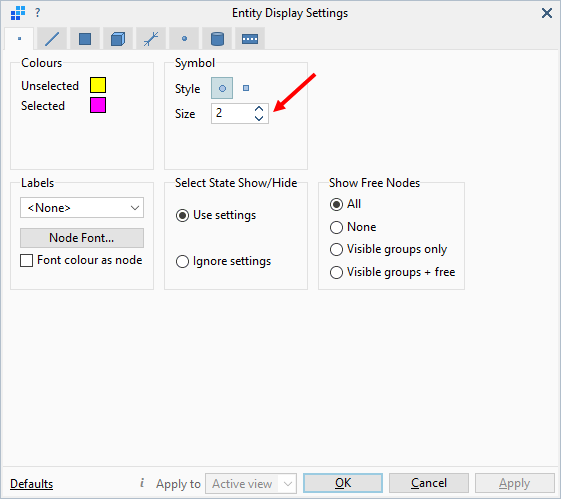
Node size is pixel-based. |
| Resetting the Scaling Factor between Pixel Space and Model Space | ||
|
By pressing F3, the scaling factor will be recalculated based on the current dimensions, and therefore pixel based settings applied in the various display option dialogs will be refreshed. Pixel sizes will then be accurate.
In the figure below-left, the nodes appear small, even though the user has set their pixel size to maximum. By pressing F3, the scaling factor is recalculated and the full pixel size is rendered as shown in the figure below-right. |
||
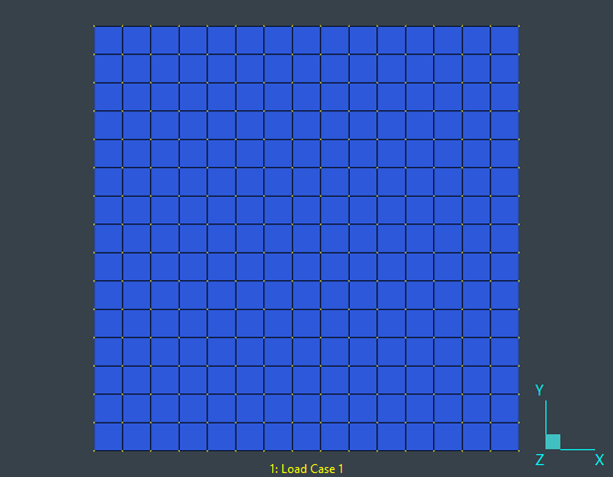
Before pressing F3. |
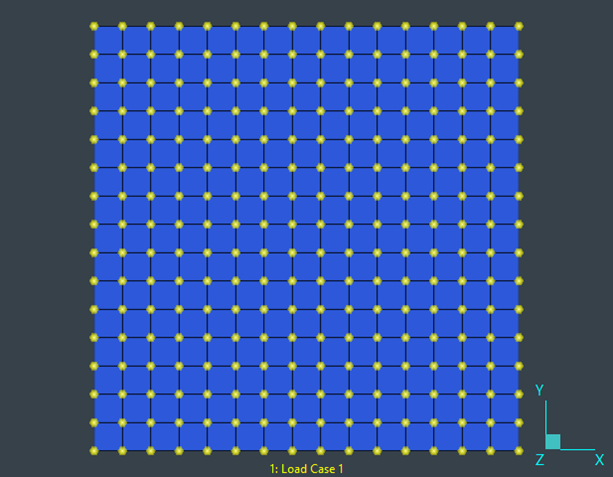
After pressing F3. |
| Additional Information | ||
|
In a multi-view display, the F4 key can be used in place of the F3 key. While F3 refreshes only the current view, F4 refreshes all views.
|
||
|
|
|
|