
 Menu
MenuStrand7 Snippets
Snippet #14: Opening In-Progress Result Files |

|
| Introduction | ||
Result files produced by the Strand7 solver are opened via the Open/close results file icon  at the top of the main Strand7 toolbar; this puts the Strand7 interface into post-processing mode for the model. This icon is also used to close the result file; this returns the Strand7 interface back to pre-processing (i.e., editing) mode. at the top of the main Strand7 toolbar; this puts the Strand7 interface into post-processing mode for the model. This icon is also used to close the result file; this returns the Strand7 interface back to pre-processing (i.e., editing) mode.
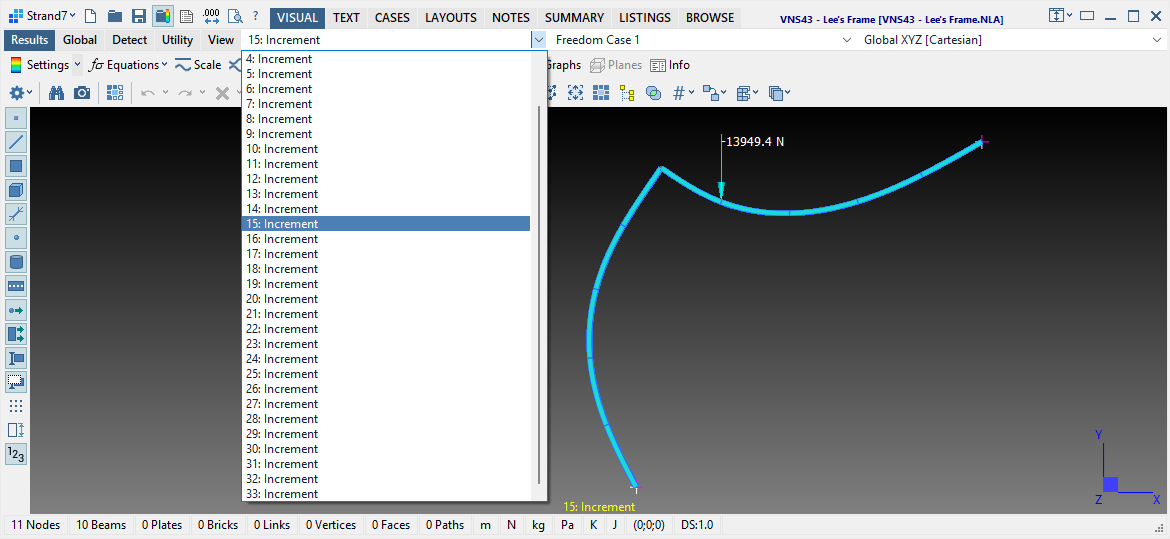
Usually we open a result file after the solver has finished running. However, for solvers producing multiple result cases or steps, we can open the result file to inspect the completed steps even while the solver is still calculating other steps. The result case dropdown list in the model window will show the currently available result cases when an in-progress result file is opened. | ||
|
||
|
This feature applies to the following solvers: | ||
|
||
|
The feature is particularly convenient for checking a long-running nonlinear or transient analysis to make sure that results are progressing as expected. If they are not, we can immediately terminate the solver and make changes to the model before launching it again (no need to wait until the solver completes). |
||
| Usage | ||
|
The feature can be used in the normal way – that is, close the current result file and open it again to update the result case dropdown list with what is now stored in the result file.
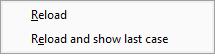
An easier way to reload an open result file is to right-click the Open/close results file icon and select from one of the two options in the popup menu:
|
||
|
|
|
The first option will reload the result file and keep the currently active result case in view. Additional result cases now available in the updated result file will be found in the dropdown list for selection. The second option will reload the result file and automatically display the last available result case in the model window. This is especially useful when we are following the progress of a solution and we want to see what happens next, as it happens. Both options will update any graphs and cutting planes you may be viewing at the time you reload (i.e., you won't need to reopen the graphs or cutting planes windows manually as you do when explicitly closing and reopening the result file). |
|
|
|
|